Your Apple Account purchase history is a comprehensive log of all the content you’ve bought using your account, not just on your iPhone, but across all your Apple devices. Knowing how to access this information on your device can give you valuable insights into your digital spending habits, help you manage your subscriptions, or even assist in troubleshooting or disputing unauthorized purchases.
So whether you’re trying to keep a budget, ensure that your family’s purchases are appropriate, or simply curious about when you bought that app or movie, here’s how to view your Apple Account purchase history on an iPhone or iPad logged into your account.
View Purchase History in Settings
- Open the Settings app and tap your Apple Account banner at the top.
- Tap Media & Purchases.
- Tap View Account in the popup and authenticate with Face ID or Touch ID.
- Scroll down and tap Purchase History.
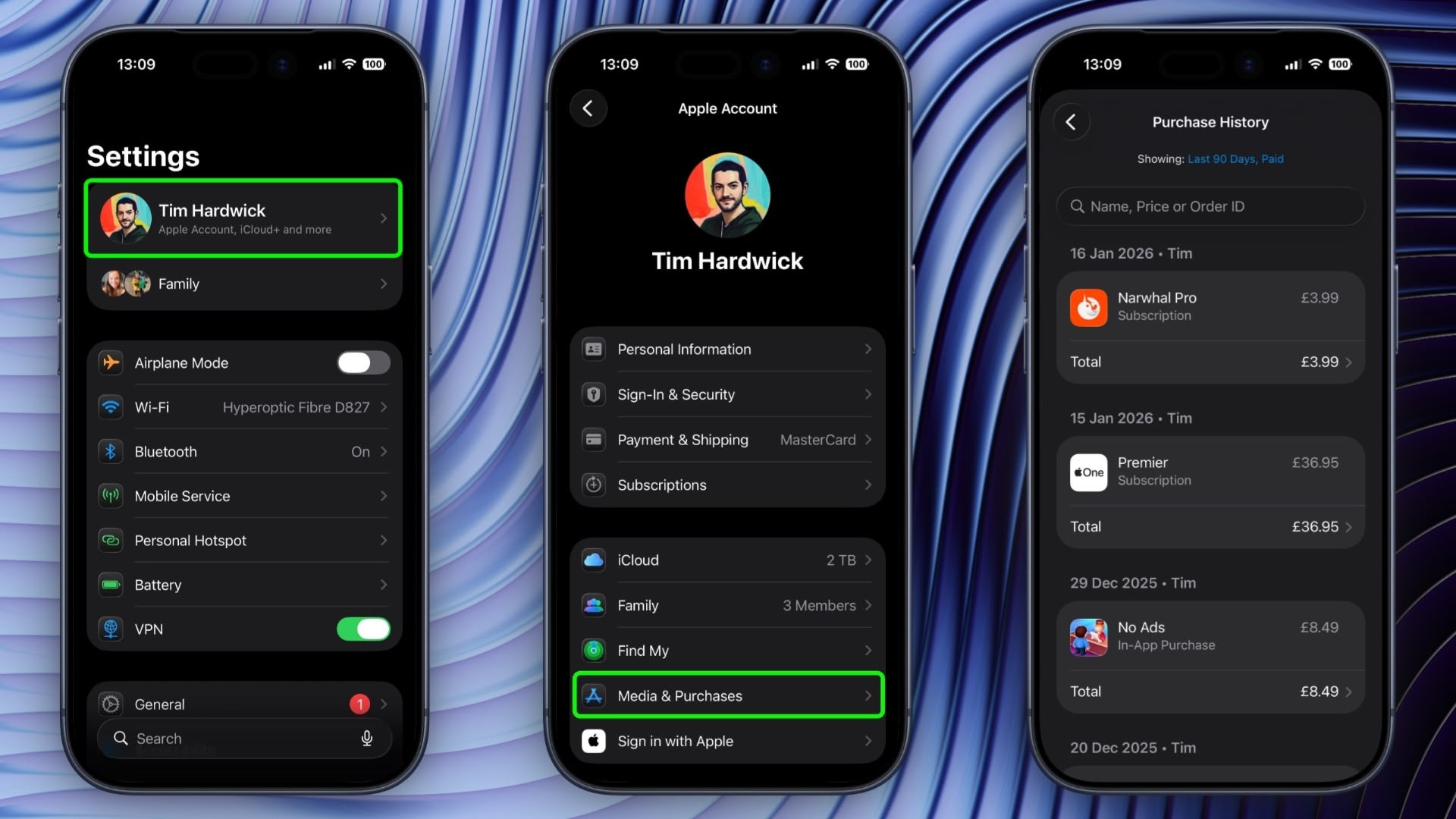
You are now viewing the purchase history for this Apple Account across all the devices tied to the account. If you are looking for a specific purchase, you can use the search field at the top to enter a name, price, or order ID.
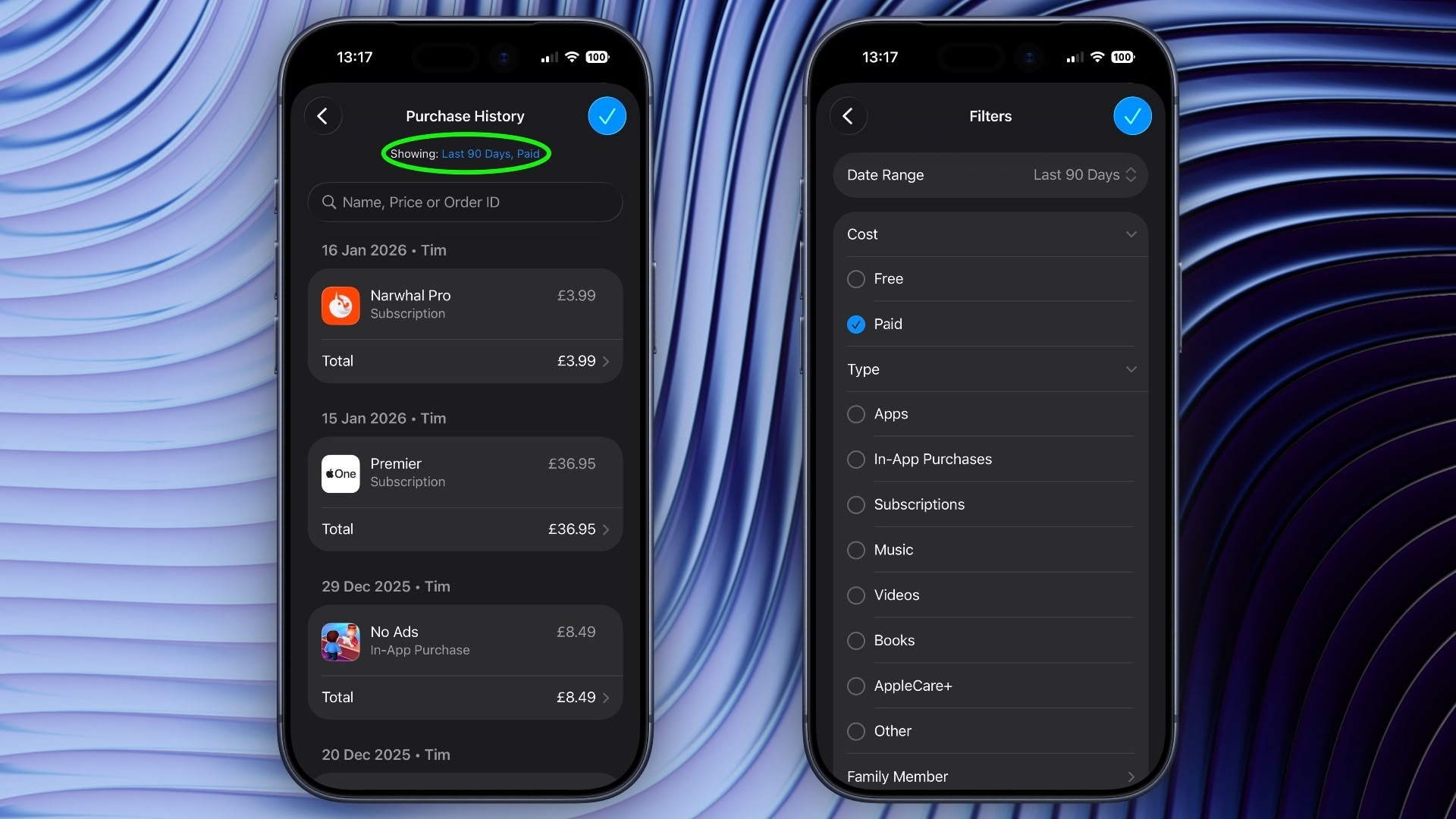
If you tap the blue text next to “Showing:” you can also filter the history by date range, price, and purchase type.
View Purchase History in App Store
In iOS 17.4 and iPadOS 17.4 or later, you can access the same purchase history a little bit faster via the App Store app on iPhone and iPad.
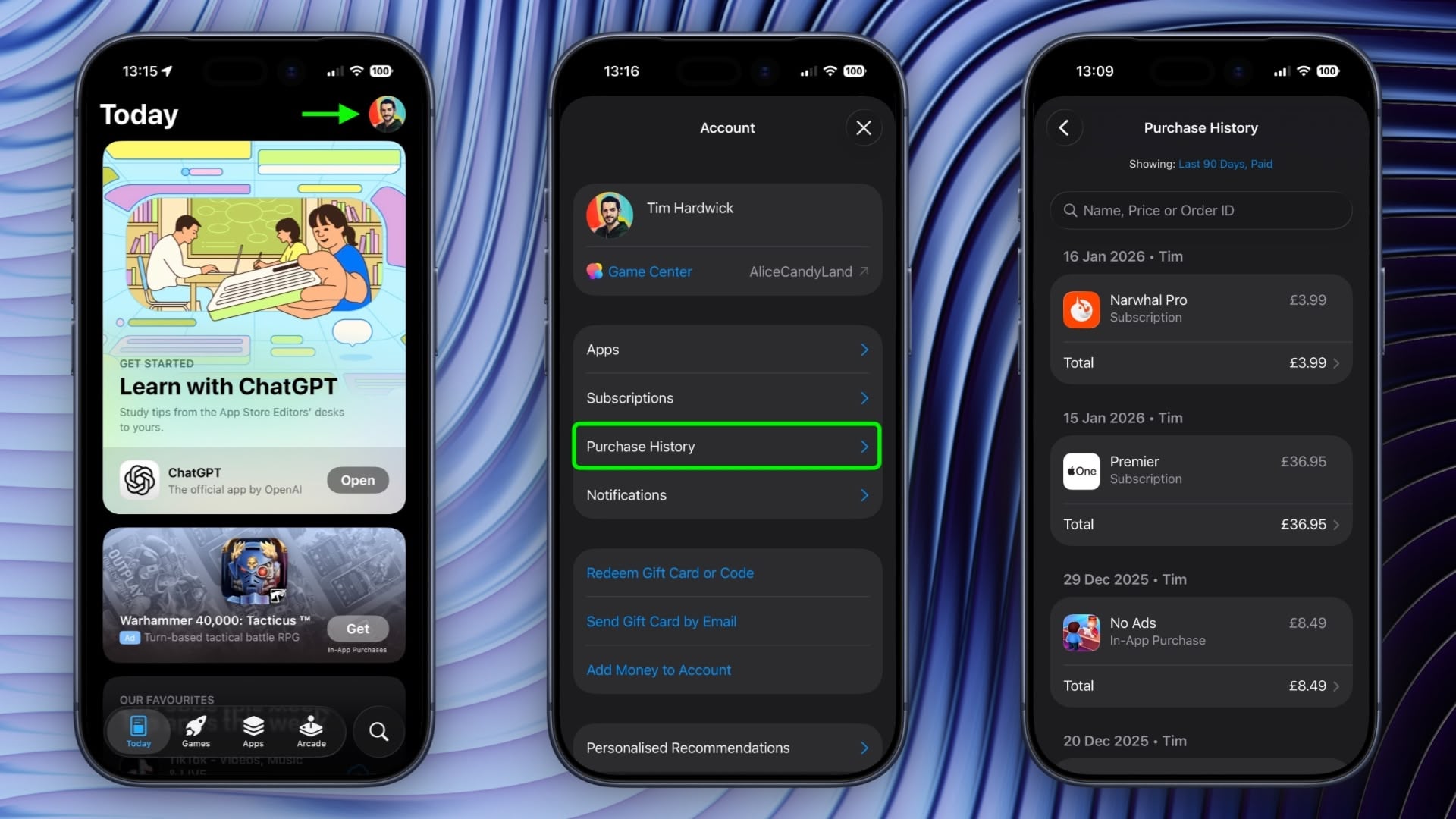
Simply tap your account profile in the top-right corner, then tap Purchase History and authenticate with Face ID or Touch ID when prompted.
This article, “Search Your Apple Account Purchase History on iPhone” first appeared on MacRumors.com
Discuss this article in our forums